Setup a POP3 / IMAP email account in Microsoft Outlook 2016
-
-
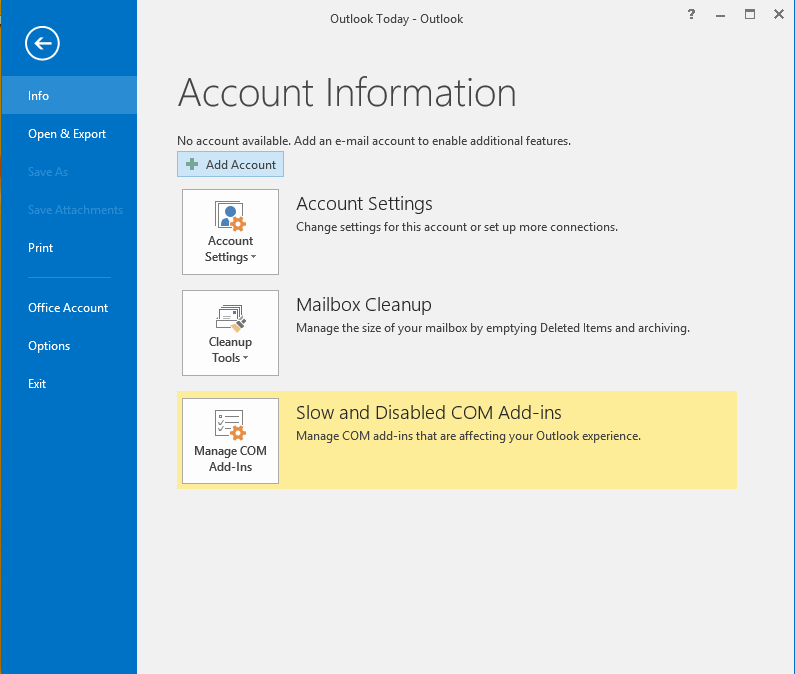
Open Outlook. Click “File” > “Info” > “Add Account”.
-
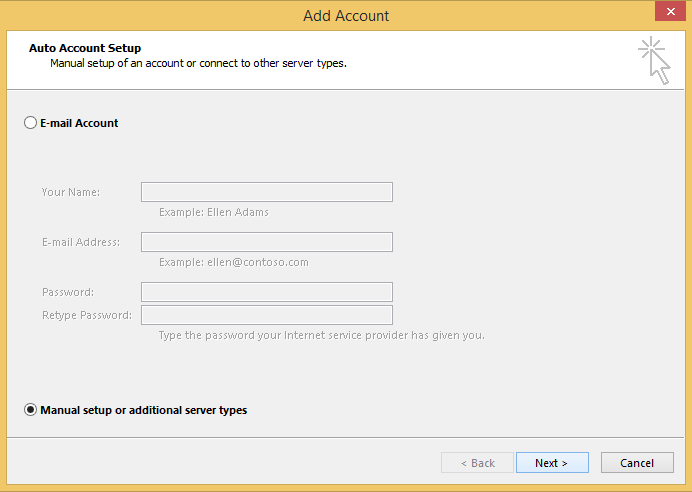
Select “Manual setup or additional server types” and click “Next”.
-
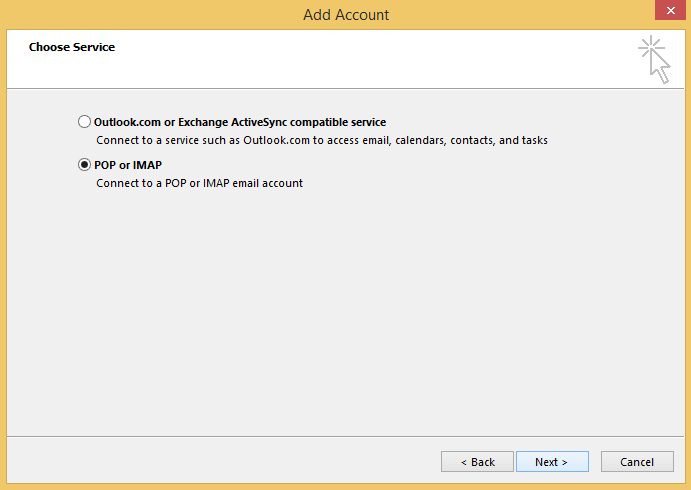
Select “POP or IMAP” and click “Next”.
-
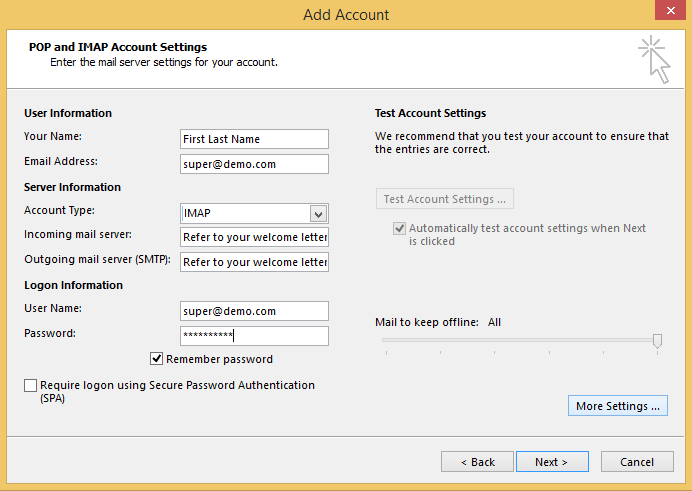
You will need to enter the following information:
- Your name : Type your name. This is the name of the sender in email messages that you send from this account.
- Email address : Full email address
- Account type : POP3 / IMAP
- Incoming mail server : refer to your welcome letter
- Outgoing (SMTP) email server : refer to your welcome letter
- User Name : Full email address
- Password : Email account password
Click “More Settings”.
-
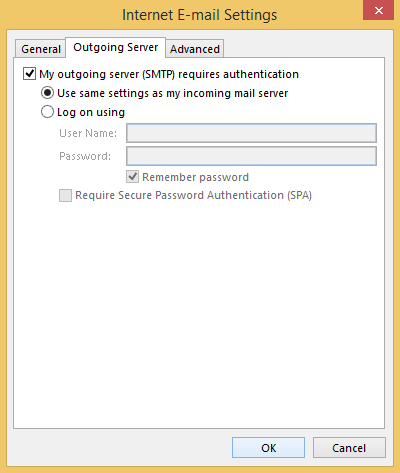
Click on the “Outgoing Server” tab, then check “My outgoing server (SMTP) requires authentication”, then choose “Use same settings as my incoming mail server”.
-
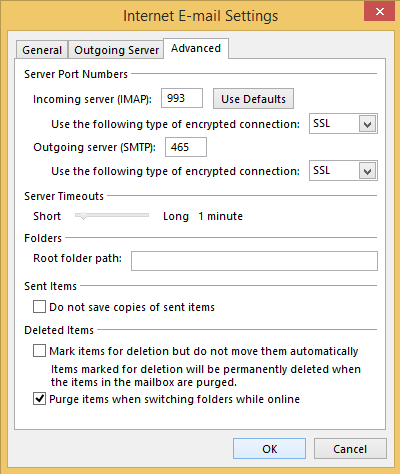
Click on “Advanced” tab.
Note :
Non-SSL Settings Secure SSL / TLS Settings Incoming Server: refer to your welcome letter - IMAP Port : 143
- POP3 Port : 110
Outgoing Server: refer to your welcome letter
- SMTP Port : 2525
Incoming Server: refer to your welcome letter - IMAP Port : 993
- POP3 Port : 995
Outgoing Server: refer to your welcome letter
- SMTP Port : 465
Remark : If you use Secure SSL / TLS Settings, check the “This service requires a secure connection (SSL)” box in both outgoing and Incoming mails.
Click “OK” to finish.
-


