Upload, download and manage files via FileZilla FTP
-
-
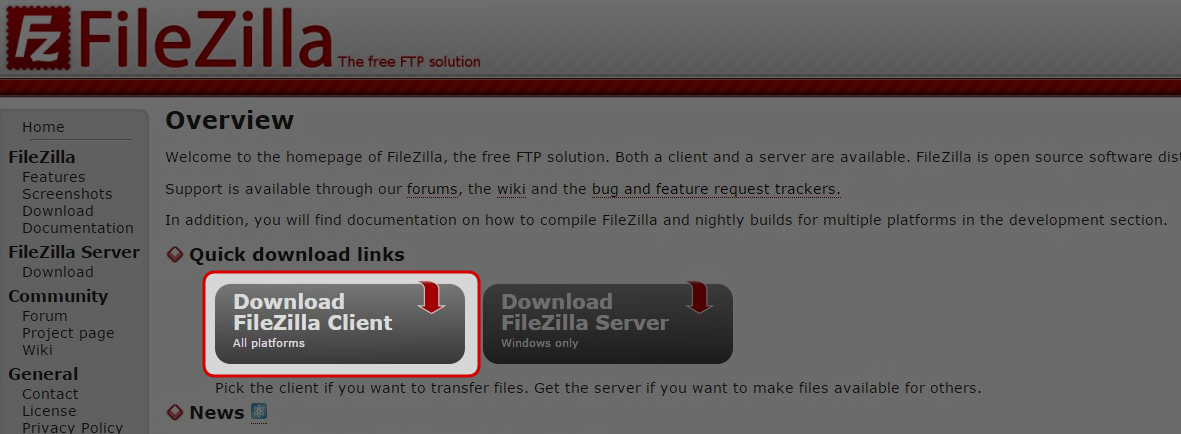
You can download FileZilla Client from http://filezilla-project.org/. Follow the instructions to download. Install it after the download is completed.
-
Double click on the FileZilla icon to launch the application.
-
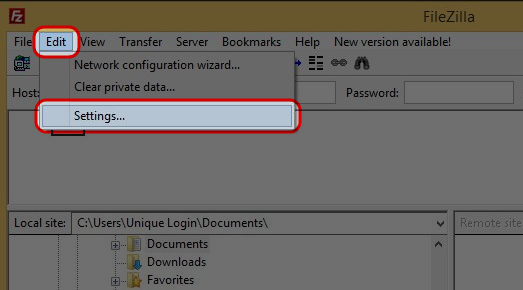
Click “Edit” on the menu, then click “Settings…”.
-
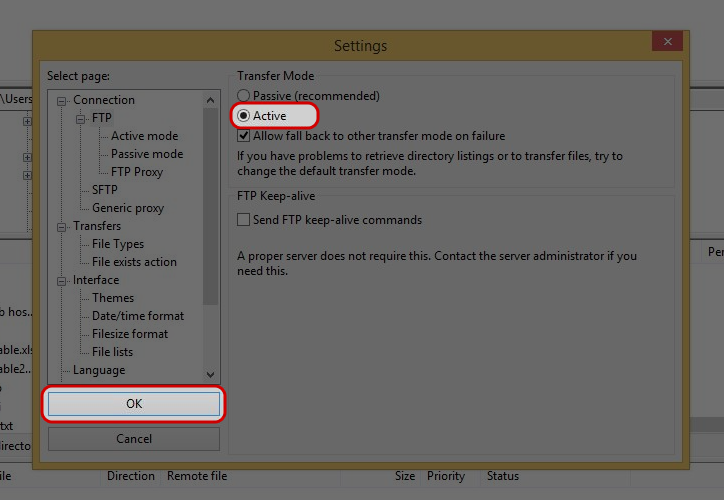
Select “FTP” from select page, then choose “Active” for Transfer Mode, and click “OK” to save the settings.
-
Enter your Host IP, FTP username and password (if you do not have the account details, please contact Dataplugs), then click on “Quickconnect” button.

-
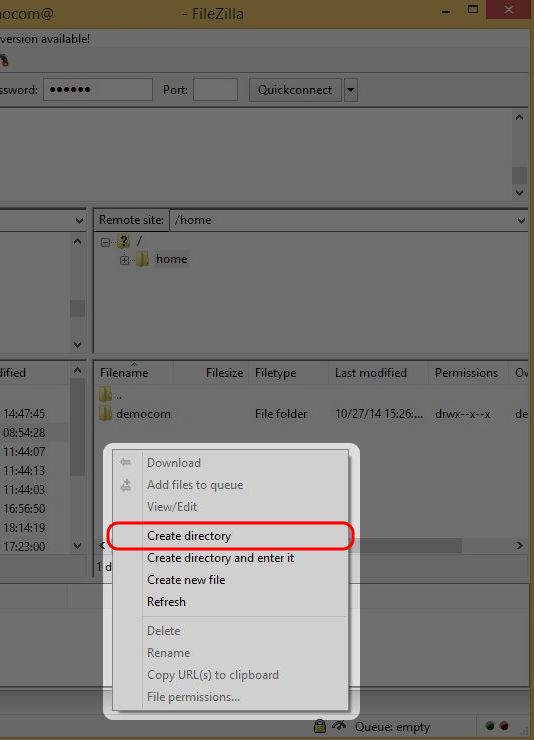
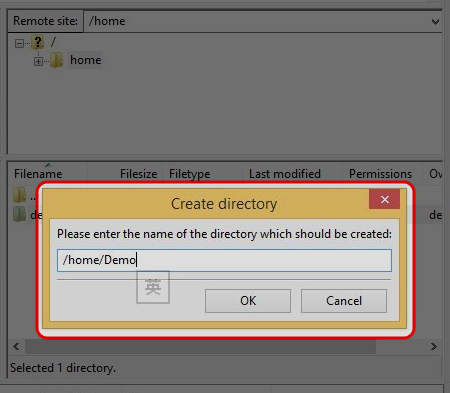
Right click and select “Create directory” on anywhere at Remote site.
-
Enter directory name and click “OK”.
-
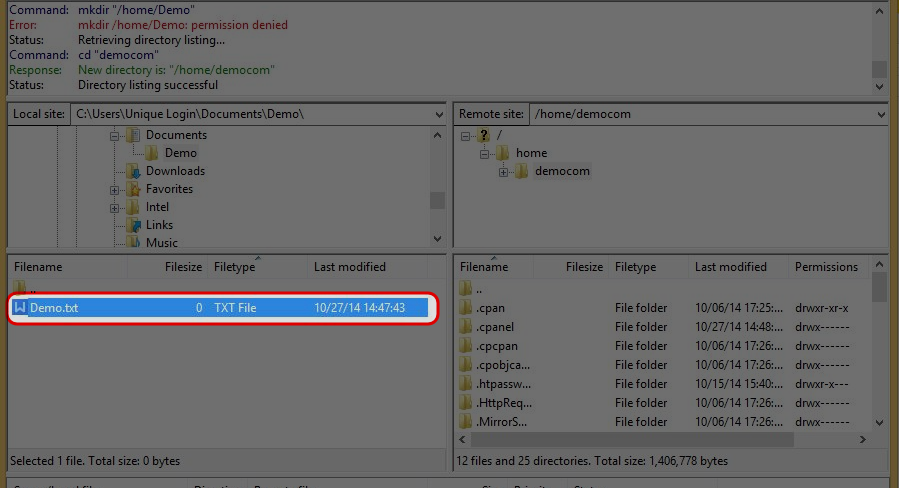
Select file you would like to upload. Press “CTRL” to select multiple files from Local site.
-
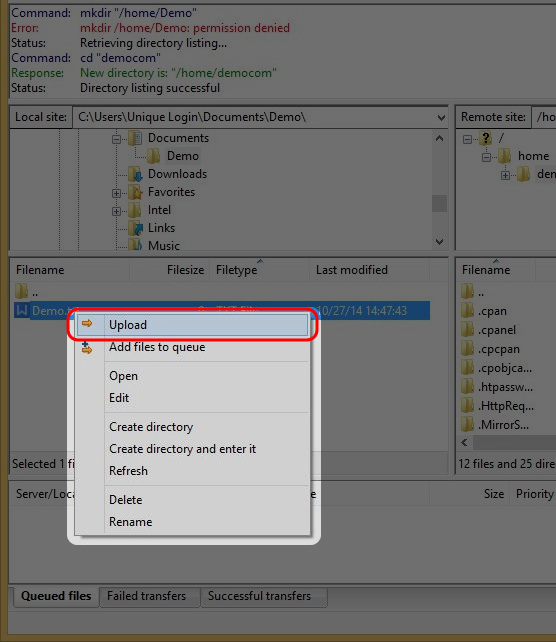
To upload files to the remote server, right click on the selected files, then select “Upload”.
-
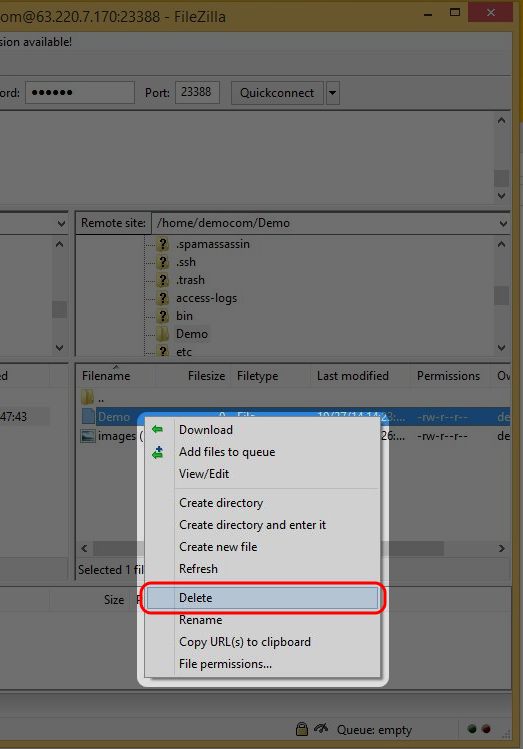
To delete file from the remote server, right click on the selected file, then select “Delete”.
-
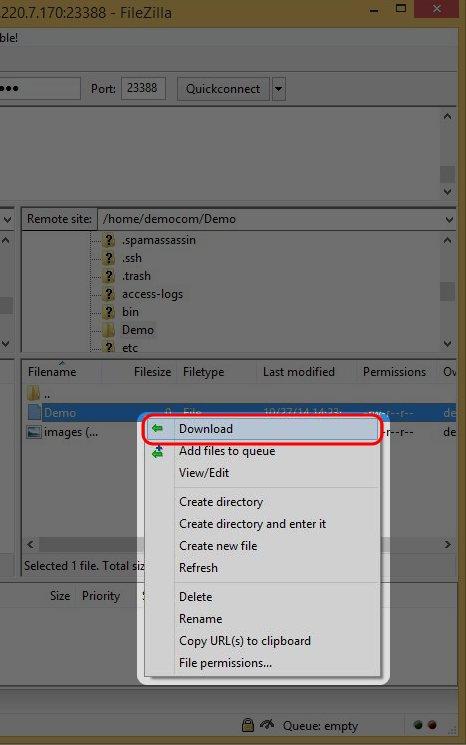
To download file from the remote server, right click on the selected file, then select “Download”.
-
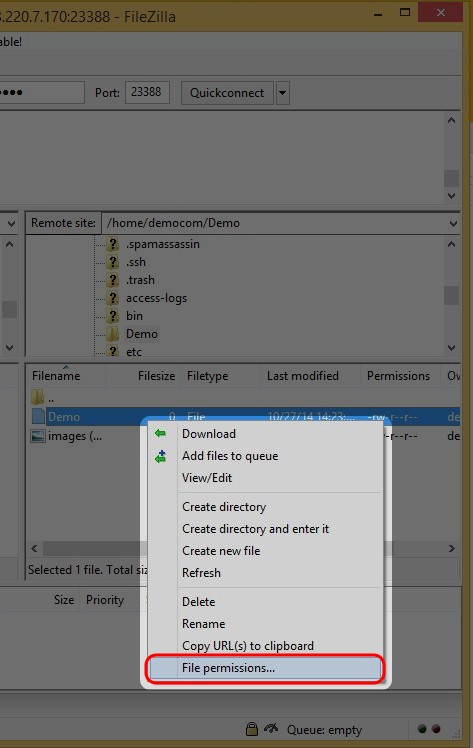
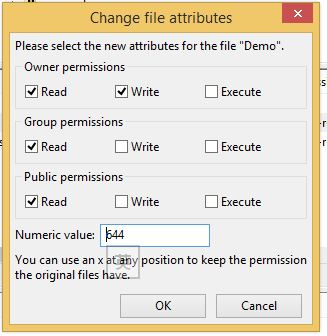
To change the permission, right click on the selected file, then select “File Permissions”.
-
Or attribute of the selected file, then select “File Permissions” to change the permission.
-


